|
|
|
The way the CNC Workshop was designed is to quickly and efficiently set up tool information, hole patterns, cutouts and send them to nest using EnRoute for nesting and G-Code creation.
This help file should go through every aspect of the Workshop to give guidance and help on each section.
If a section is incomplete or needs to be more in depth, please call Tech Support at 209-836-4077 or email all questions to support@cabinetsolutions.net.
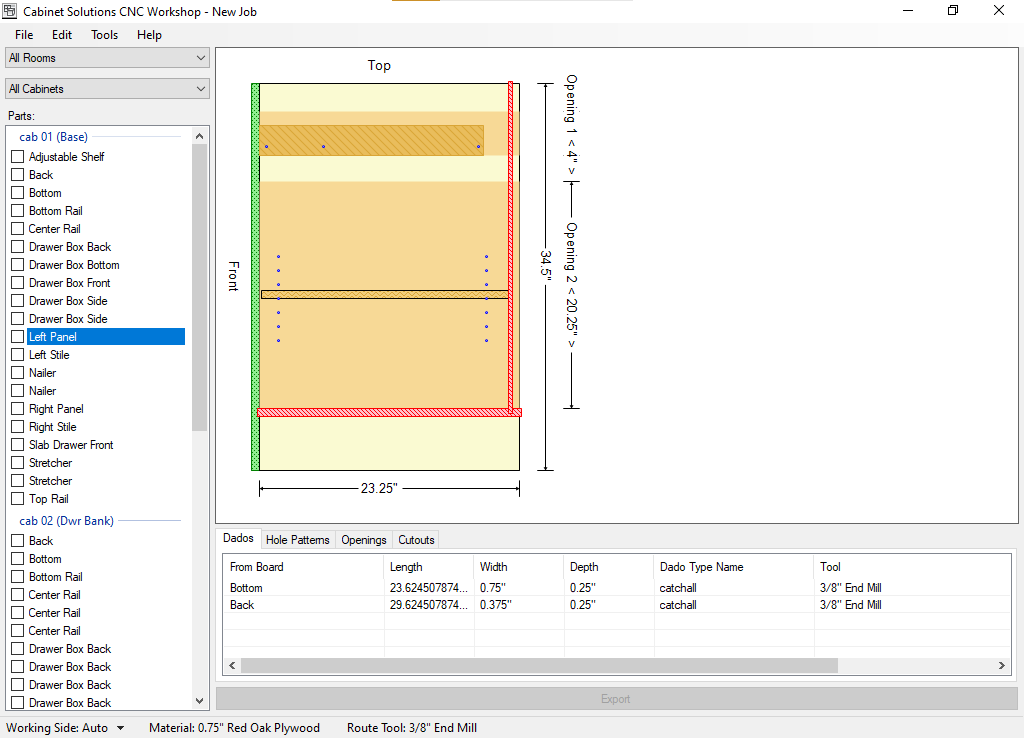
The Workshop is divided into different sections. Each Section gives a lot of information and will be broken down as below:
- Menus: Each menu contains much information and is designed to resemble normal looks and feels of other applications so the program is easier to use.
- Cabinet Parts Section: Located on the left hand side of the screen, you can use the drop down lists to display all or specific rooms and also display all or only specific cabinet parts to work with. Below that are a listing of all cabinet (if "All Cabinets" is selected in the cabinet list, it displays every cabinet that is imported or if a single cabinet has been selected, only the information for that cabinet) parts. Each part can be displayed by clicking on the part name, or selected for export by clicking on the check mark next to the name. If you hover the mouse over the part, a Tool Tip window comes up and displays information about the board highlighted. It tells the Size, Material, and Tool that is being used to cut the part out. Until tools are set up, the Board Route Tool information will display -none-.
- Board Display: This display shows the board as if it is being looked at directly on the table with indicators such as Top/Left/Bottom/Right to display where the paths will go. The information displayed in this section is scaled to fit to the monitor resolution.
- Customize Cabinet Information: Like Cabinet Solutions, individual items can be singled out and customized away from the rest. The information displayed are Dados, Hole Patterns, Openings, and Cutouts.
- Working Side: This displays which side is going to be face side up on your CNC machine. This information may need to be modified depending on which side you want displayed.
- Export: This button will be clickable once parts from the Cabinet Parts section have been selected for exporting. This button will export the parts to EnRoute for nesting.
|