Select for Export
Select for Export
This section gives options for how to select parts for exporting as either DXF or EnRoute.
- Select All
- Select None
- Select By Material
- Select by Part Type
- Select by Cabinet Type
Select All: This will select all parts on all cabinets that are displayed. If only a single cabinet is displayed, only all the parts for that cabinet will be selected.
Select None: This will deselect all parts that are currently selected.
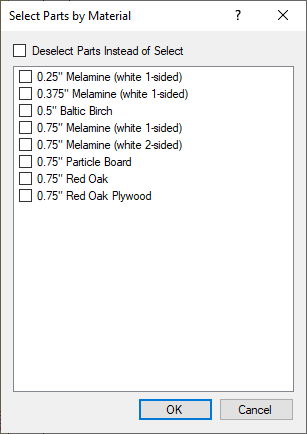
Select by Material: This will bring up a window that displays all materials that are in the current job. At the top of the window is an option to De-Select instead of Select. To use this, click on it and then whatever materials you already have selected will be de-selected from the list of selected items.
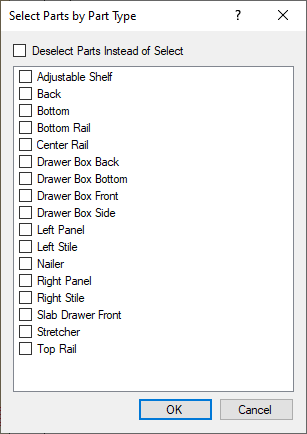
Select by Part Type: This will bring up a window that displays all part types that are in the current job. At the top of the window is an option to De-Select instead of Select. To use this, click on it and then whatever part types you already have selected will be de-selected from the list of selected items.
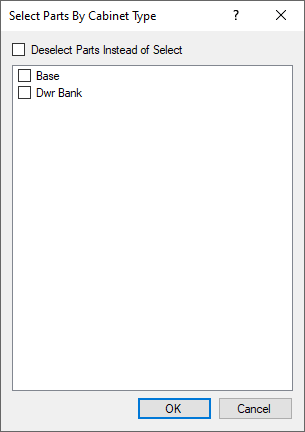
Select by Cabinet Type: This will bring up a window that displays all cabinet types that are in the current job. At the top of the window is an option to De-Select instead of Select. To use this, click on it and then whatever parts of the cabinet types you already have selected will be de-selected from the list of selected items.
NOTE: IN ORDER FOR THE DE-SELECT INSTEAD OF SELECT OPTIONS TO WORK, ITEMS MUST ALREADY BE SELECTED.
|
|
|
|
|
Select by Materials |
Select by Part Type |
Select by Cabinet Type |